📖 How to Use Alliance Verifier
Learn how to verify your alliance membership by uploading your profile image
Go to the Verification Channel
Contact your server administrators to find out the verification channel
Upload Your Profile Image
Upload only your profile image - not a full screenshot of your screen. The bot uses OCR to read the alliance name from your profile.
Wait for Verification
The bot will automatically process your image. If your alliance is recognized, you'll receive the verified role. If not, you'll see a ❌ reaction.
✅ Correct Image Example
Upload an image that shows only your profile like this:
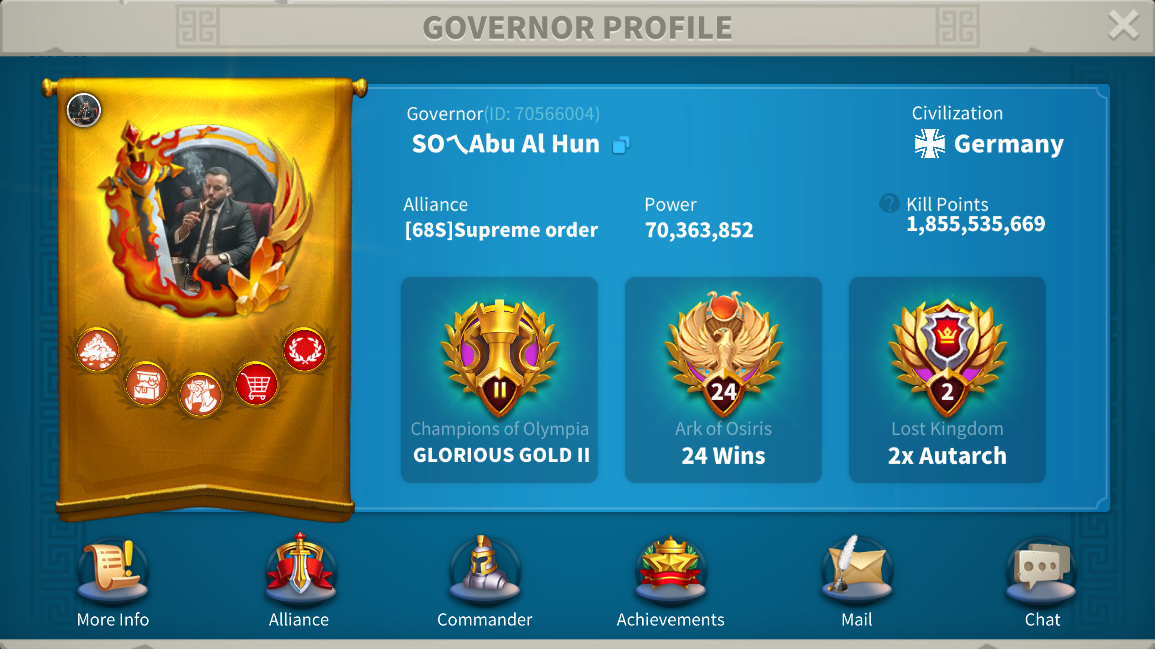
This is the correct format - shows only the profile section
⚠️ Important Notes
-
Do NOT upload: Full screen screenshots, images with multiple profiles, or cropped images that don't show the alliance name clearly.
-
Upload ONLY: Your profile image that clearly shows your alliance name/tag.
-
Tip: Make sure the picture is clear and read the name of the alliance. Android supports Arabic and English language only
🥺 Reasons for rejection
-
Reason for the alliance: Your alliance verification may be rejected. Please check with server administrators regarding supported alliances..
-
poor quality: The OCR scanner may not be able to process the text in the image due to the image quality
❓ Most Common Questions
-
Why only English and Arabic? The robot uses OCR and currently supports English and Arabic text only
-
Why not full screenshots? Full UI images contain too much random text which causes wrong detections.
-
Why profile image only? The alliance tag is stable, clear and accurate ONLY inside the profile panel.